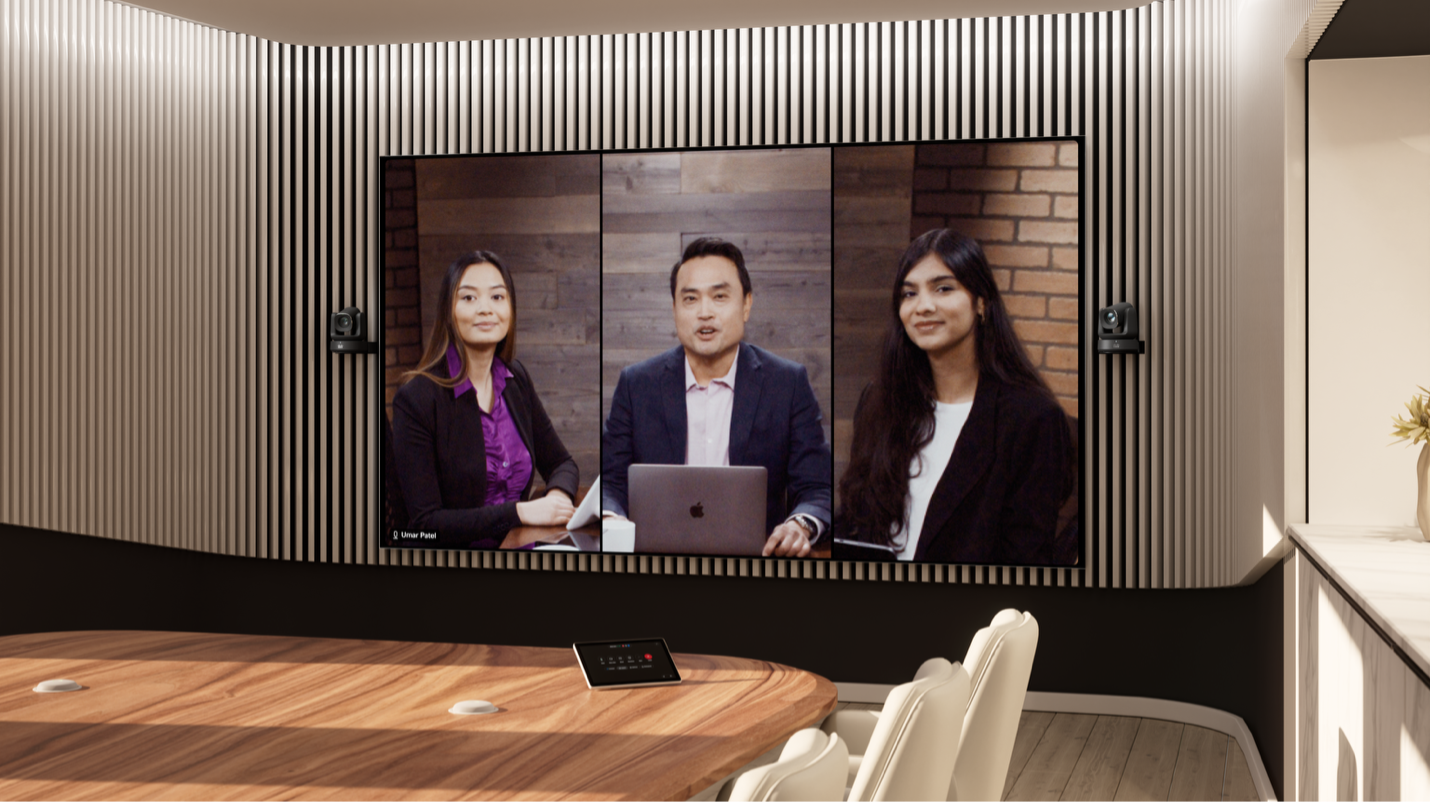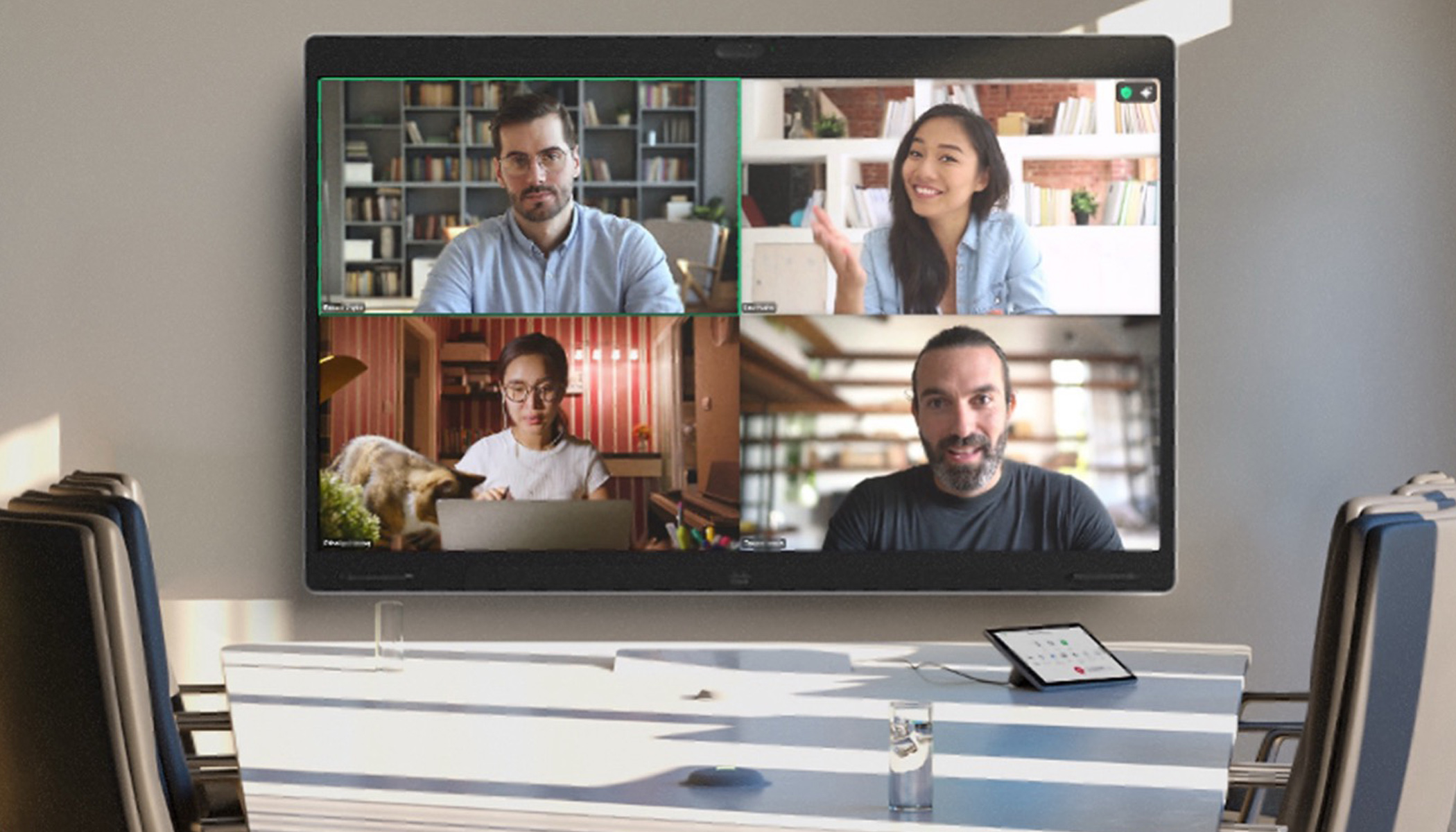
Flexible and powerful new options deliver feature-rich Zoom meetings on the Cisco devices you love.
For organizations that love Cisco’s world-class hardware but frequently collaborate via Zoom, the experience just got a massive upgrade. Cisco and Zoom have expanded their partnership to launch Zoom for Cisco Rooms, a new integration that brings the familiar Zoom interface directly to your RoomOS devices.
What’s new?
Previously, joining a Zoom call from a Cisco device relied on SIP interoperability. While functional, it often felt like a “simplified” or “compromised” version of a meeting, with key functionality not supported.
This new solution uses a secure Android container within Cisco RoomOS 26 to run a dedicated Zoom Meetings experience. This provides a far more robust and feature-rich “app-like” experience than traditional interop. You get a familiar Zoom UI, layouts, and controls while still being able to use Cisco’s hardware-level features like high-end camera framing and noise removal and take advantage of Cisco’s leading device management capabilities and workspace integrations.
Two ways to experience Zoom for Cisco Rooms
1. Guest mode
Guest mode provides a frictionless Zoom meeting experience that’s ideal for people that need to join Zoom meetings in rooms that do not have a full Zoom Rooms license.
- The experience: Join via One Button to Push (OBTP) or by entering a Meeting ID.
- The features: You get an “app-like” Zoom meeting experience, and access to other Zoom features like Breakout Rooms and Webinar attendee support—features previously unavailable through basic SIP interop.
- Cost effective: No Zoom subscription is required for the device itself.
2. Signed-in mode
Signed-in mode requires a Zoom Rooms license and an activation code from the Zoom admin portal. Once activated in Control Hub, this turns your Cisco hardware into a powerful Zoom endpoint, providing even more flexibility and additional features. It’s ideal for organizations that use Zoom frequently.
- Host & control: Join or host meetings, start Instant Meetings from the device, and manage participants.
- Proximity pairing: Use the Zoom app on your laptop or mobile to “pair” with the room, allowing you to launch meetings or start a Zoom Direct Share session wirelessly.
- Webinar power: Full support for both Webinar panelists and attendees.
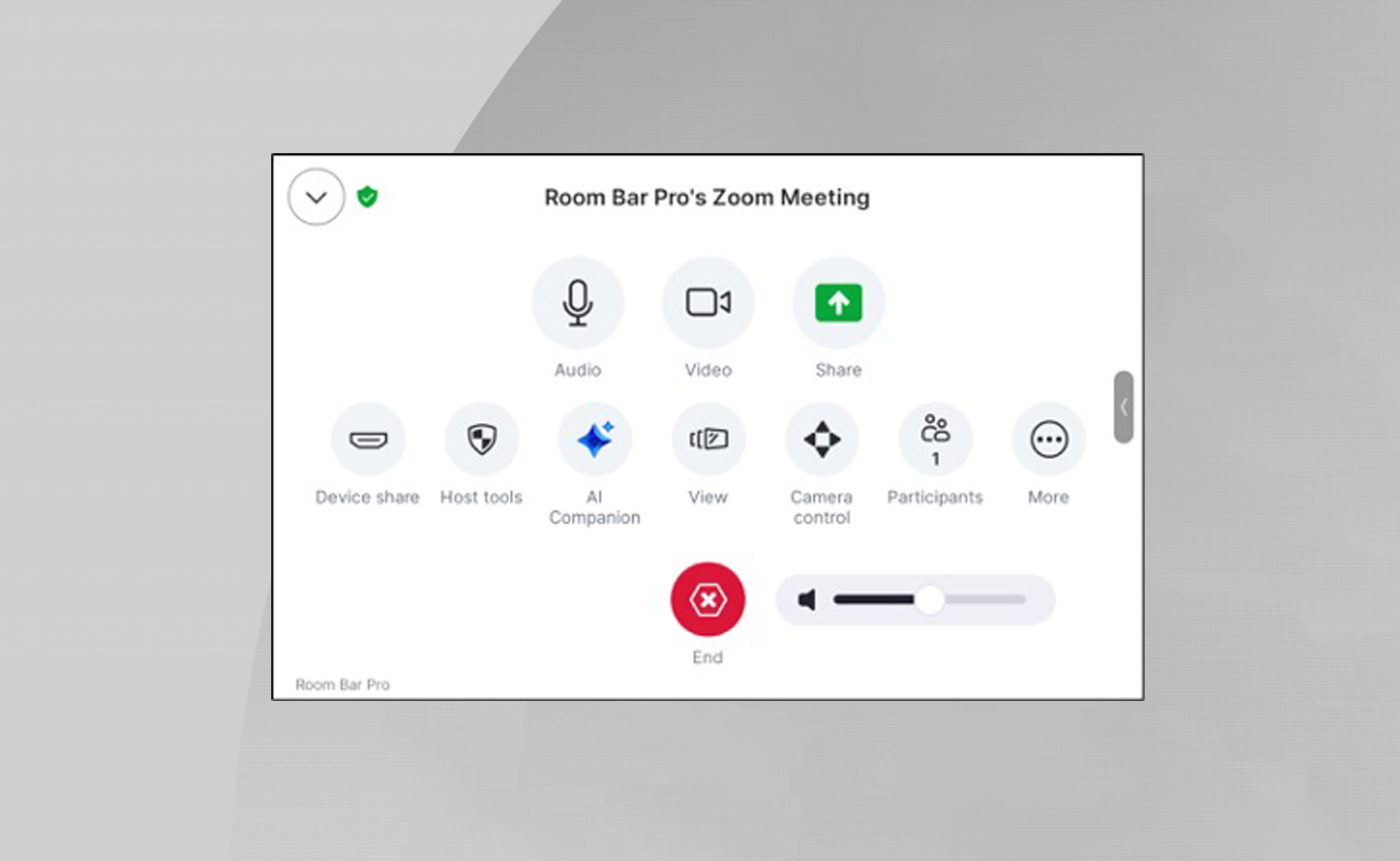
Learn more about the Zoom for Cisco Rooms user experience here
Unleash the full potential of your room investments.
By utilizing the power and flexibility of RoomOS 26 on Cisco devices, Cisco and Zoom can deliver a much richer feature set than SIP-based meetings interoperability ever could. For both guest mode and signed-in mode you now get:
- Familiar call controls: The Zoom same icons and workflows you use on your desktop app.
- Dual-screen support: Providing a better solution for larger rooms requiring more screen real estate for visibility or dedicated screens for shared content, Zoom for Cisco Rooms supports optimized layouts for both single and dual-display rooms.
- Join any meeting: In addition to an amazing Zoom experience, these Cisco devices can provide fully featured Webex Meetings experience and interoperability with Microsoft Teams and Google meetings.
- Edge-AI enhanced meeting experiences: Take advantage of the “best-in-class” audio and video intelligence or capabilities built-into Cisco devices powered by RoomOS and NVIDIA AI/ML engines in any meeting.
- Unrivalled management and observability: Get enterprise provisioning and maintenance tools, AI-powered troubleshooting, and rich workspace analytics in Control Hub.
Supported hardware
This update is available for the latest generation of Cisco collaboration devices – a broad portfolio that allows you scale across your organization and transform any workspace:
- Video bars: Room Bar, Room Bar Pro (with supported Room Navigators)
- Room kits: Room Kit EQ, Room Kit EQX, and Room Kit Pro (with supported Room Navigators)
- Interactive collaboration boards: Board Pro, Board Pro G2
- Desktops: Desk Pro
Ready to get started?
Zoom for Cisco Rooms is now generally available. Admins can find the setup guides to enable this experience in the Cisco Help Center.
About The Author