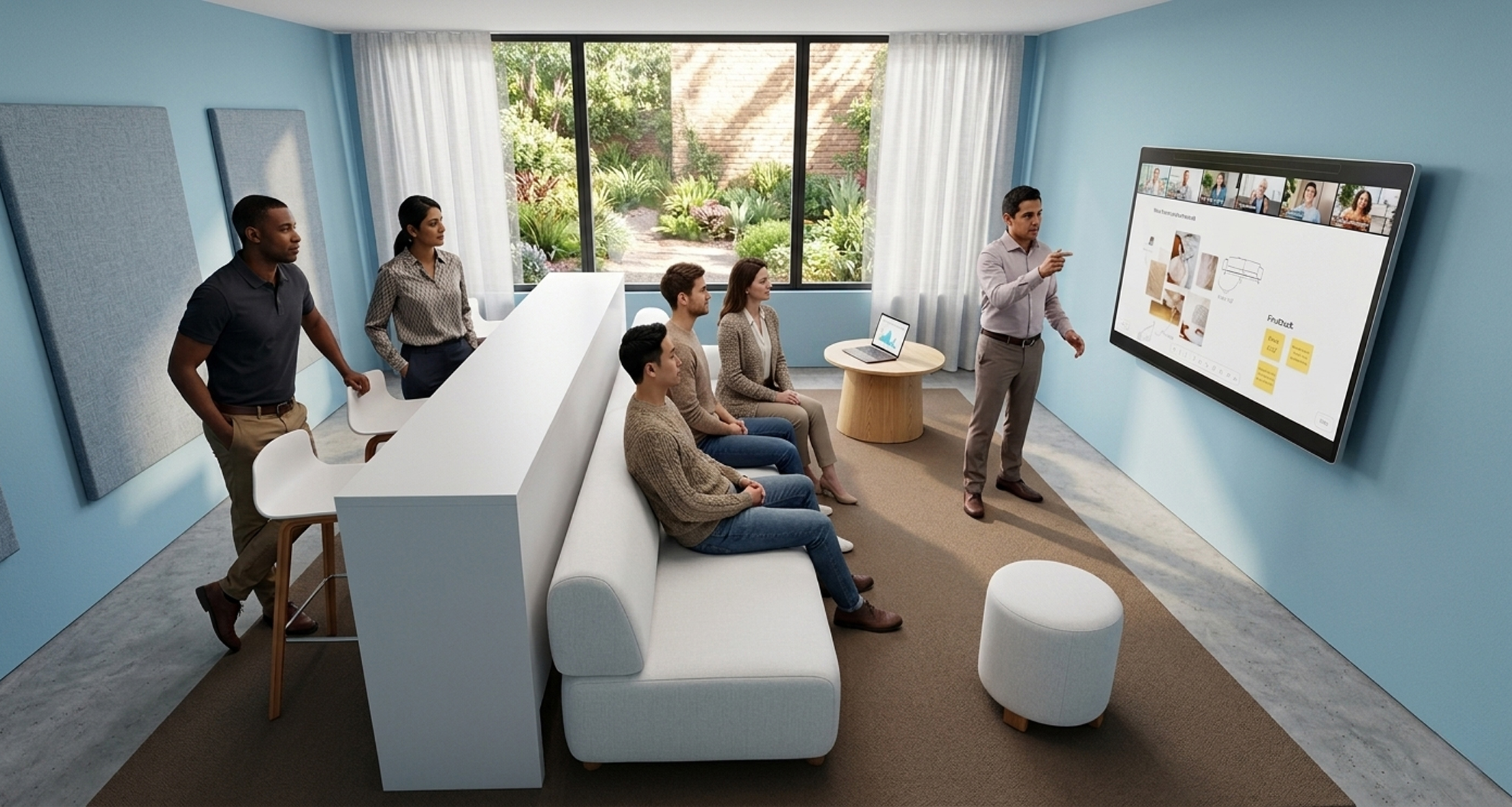
This header image was designed in Workspace Designer and brought to life using Google Gemini. Want to create your own stunning, lifelike concepts? Take inspiration from our photorealistic rendering guide.
Workspace planning moves through many hands before a room is ready: design, stakeholder review, ordering, installation, and ongoing management.
The latest Workspace Designer updates make that journey seamless. You can sign in with your Webex account, save designs, share them securely, easily prepare for ordering through Cisco Commerce Workspace (CCW), and carry the design context into Collaboration Control Hub through Workspace Advisor.
Workspace Advisor gives admins an editable 3D model of a deployed workspace in Collaboration Control Hub, combining room design context with live device data to help teams understand and improve rooms over time.
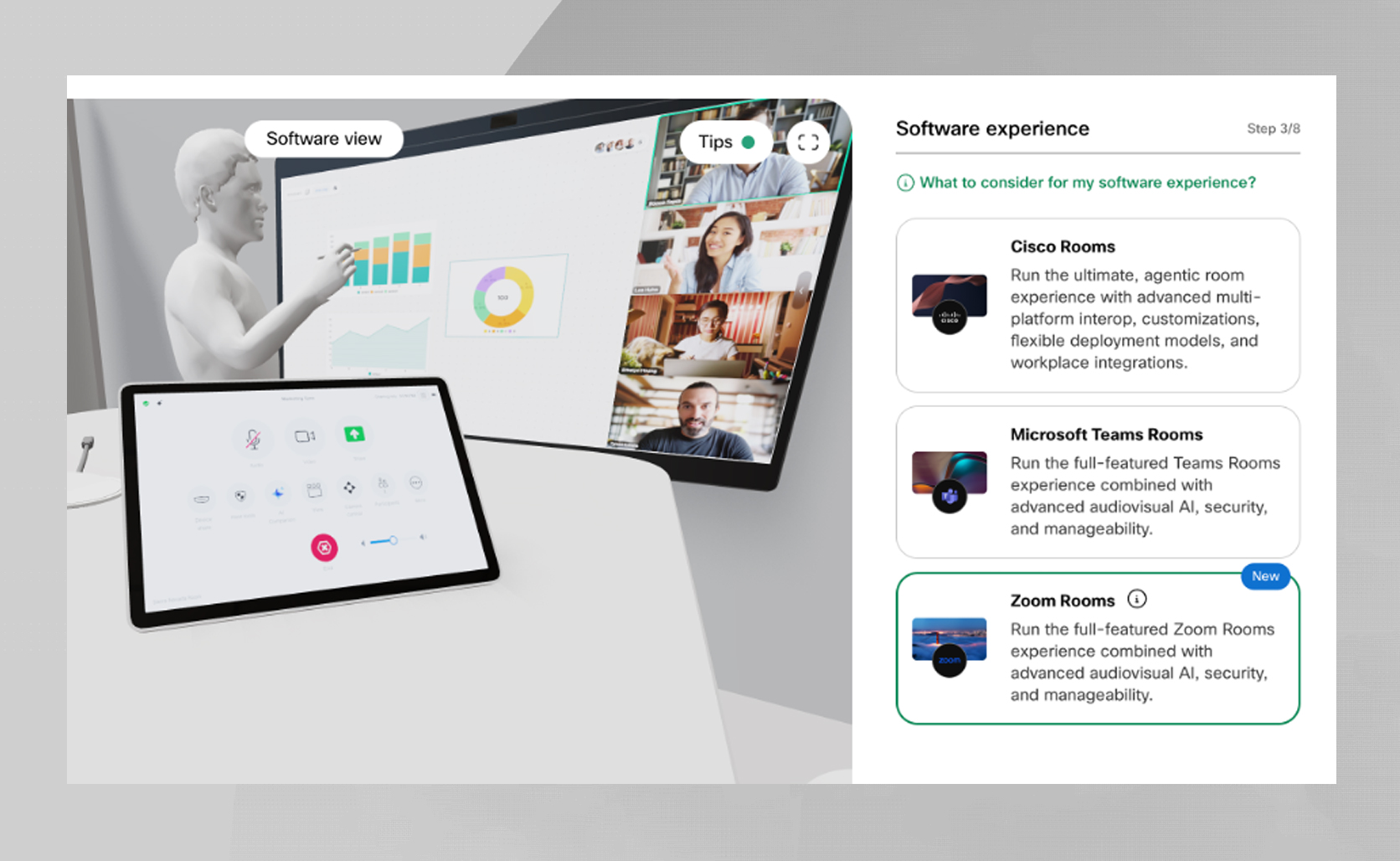
Plan native Zoom Rooms in Workspace Designer
Workspace Designer now supports native Zoom Rooms, making it easier to plan and visualize collaboration spaces for organizations that use Zoom as part of their meeting experience.
You can design Zoom Rooms with the same interactive 3D workflow used for Cisco collaboration spaces: explore room layouts, check camera coverage, review recommendations, and generate a blueprint before the room is built. This gives teams a clearer way to plan meeting rooms across platforms while keeping the design process consistent.
Manage room designs at scale
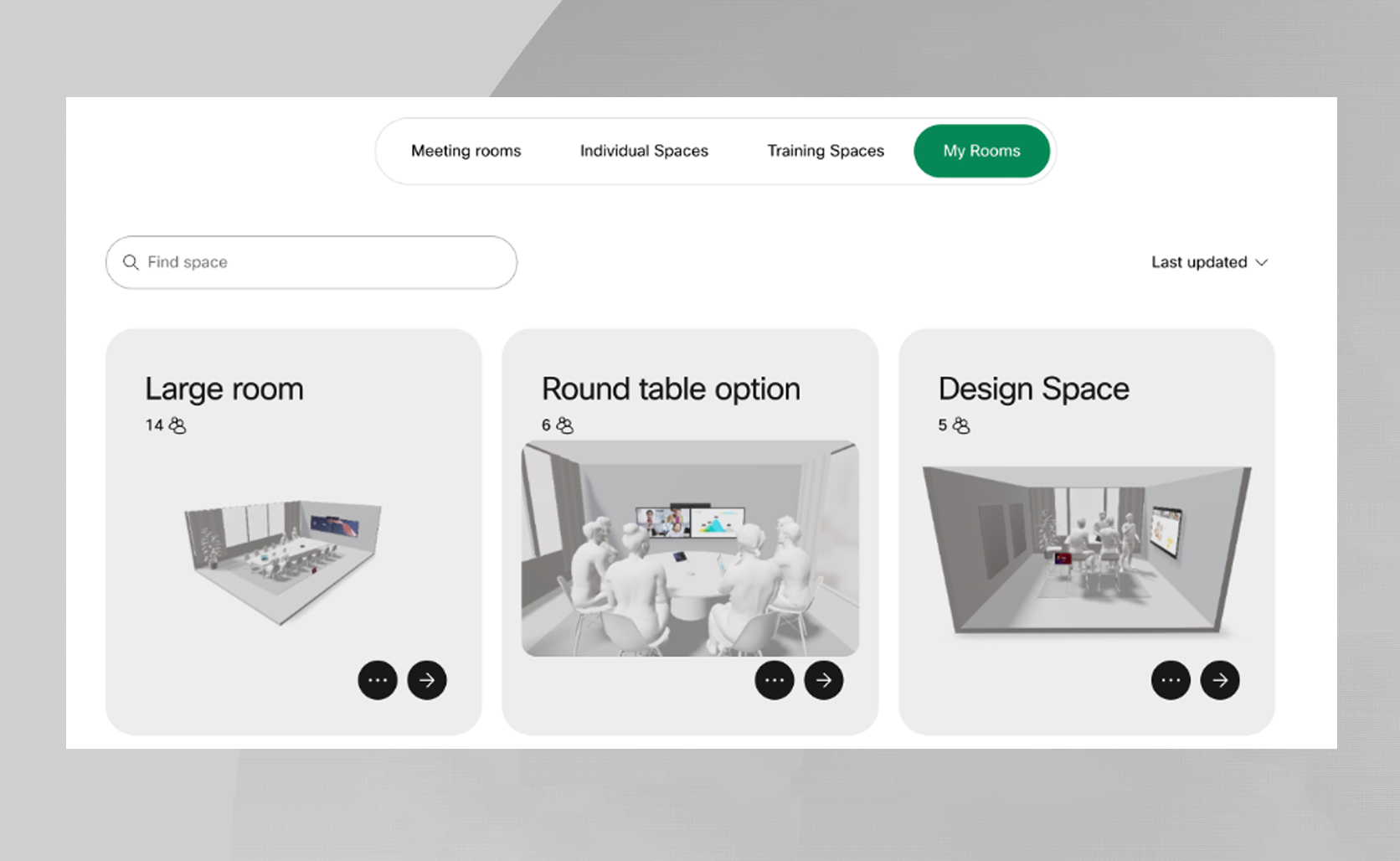
Planning rooms across a campus or global deployment can quickly become hard to manage. IT, design, and facility teams need to compare options, align stakeholders, and support procurement decisions across many room types and locations.
By signing in with your Webex account, you can save room designs to the cloud and find them again under My rooms, making it easier to manage multiple configurations without relying on long bookmarked URLs.
Saved designs can also be shared securely. When you update and save a room, the shared version reflects the latest design, and you can choose to hide pricing information in shared blueprints when needed.
Move faster from design to ordering
Once the design is ready, the next step is making sure the right equipment and quantities are ordered. Workspace Designer now lets you add room designs to a product list file that can be imported into Cisco Commerce Workspace (CCW).
This helps simplify the handoff from design to purchase by using the room design as the starting point for ordering.
Even more new ways to design
May and June have brought several new updates to Workspace Designer.
With the recent announcement of the Cisco Board Pro G3, you can now plan rooms with flexible layouts for brainstorming and dynamic collaboration. We have also added support for the new Cisco Ultra High Speed HDMI cables, and presenter track on Vision PTZ for Room Bar Pro and Board Pro G3. If Autodesk Revit is a part of your workflow, you can find Cisco products and workspace designs to pull into your projects.
Workspace Advisor
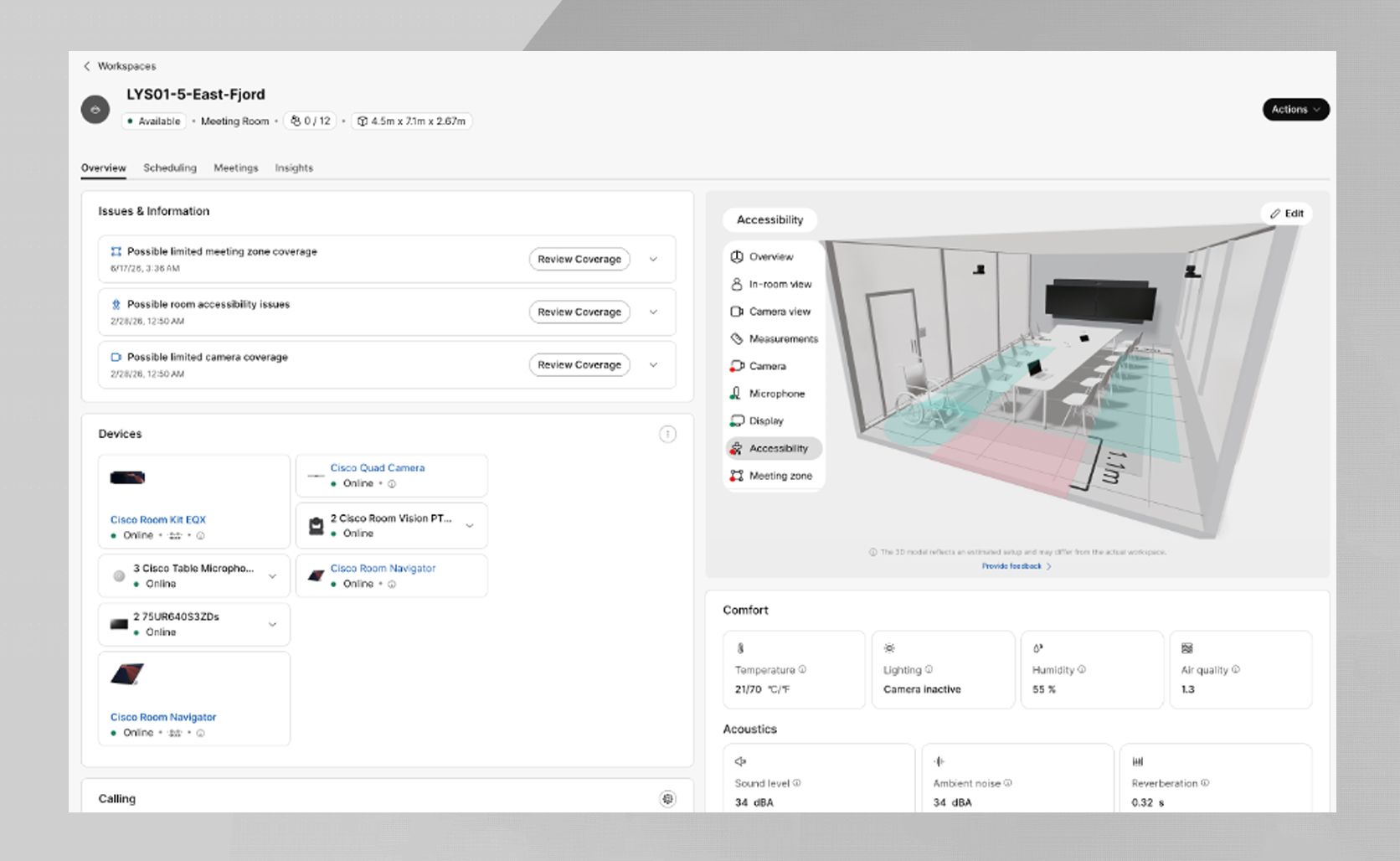
A room design should not become irrelevant once the equipment is ordered and installed. Once the room is purchased and deployed, the design can continue to live on in Collaboration Control Hub as a 3D model representation of the room via Workspace Advisor.
Workspace Advisor gives admins an editable 3D model of a deployed workspace, combining room design context with live device data to help teams understand and improve rooms over time. Admins can upload the share URL from Workspace Designer into a workspace in Collaboration Control Hub, carrying over details such as layout, capacity, furniture placement, and room configuration. From there, deployed Cisco technology reports directly into Collaboration Control Hub, adding the actual equipment information from the live workspace.
Watch Workspace Advisor in action to see how the 3D room model helps bring workspace details into Collaboration Control Hub.
With Workspace Advisor, IT and facility teams get a more visual way to understand whether a deployed room is set up for the optimal meeting experience Can everyone be seen clearly? Is the meeting zone set to include the people in the room, while excluding distractions from hallways or nearby activity? Is there enough space for wheelchair access?
Instead of having to rely to support tickets, site visits, or verbal description of issues, teams can make informed decisions using Workspace Advisor as a visual reference for improvements.
Workspace Designer streamlines your entire workplace lifecycle, from initial planning to daily management.
About The Author